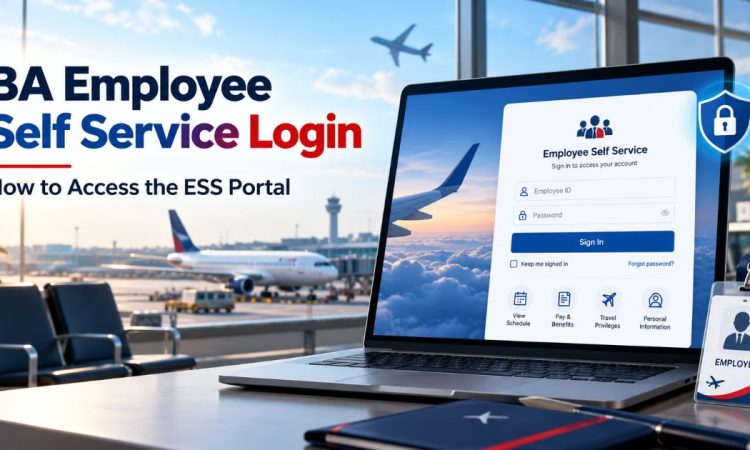

If you work for British Airways, the BA employee self service login is your way into pay details, rosters, learning and staff travel. When it fails, you can lose half a morning to error screens.
This guide explains what the portal is and how the login generally works. It also covers fixes for common problems and simple habits that keep your account safe. We cannot see inside BA’s internal systems, so we stick to checks that apply in most workplaces and point you to the right team for anything specific.
Only current colleagues can use the portal. Passengers need a different login.
What Is the BA Employee Self Service Portal?
Employee Self Service, usually shortened to ESS, is an internal staff portal run by British Airways. It lets colleagues handle routine work tasks online instead of filling in paper forms or phoning HR.
When the system first launched, reports described one sign-in giving access to payroll information, online learning, a corporate directory, staff travel and an intranet. The portal has moved on since then, so treat that as background, not a current feature list.
The phrase “self service” means exactly that. Rather than asking HR for a payslip, you open the portal and find it yourself.
Who Can Use the BA Employee Self Service Login?
Access is limited to authorised British Airways colleagues. Your account is tied to your employment record, so it normally appears once HR and IT have processed your details.
What you see depends on your role. A pilot, a baggage handler and a finance analyst will not have identical menus. Cabin crew may need rostering tools that office staff never touch.
New starters should check their onboarding pack or ask their line manager when access will be ready. Contractors and agency workers may have limited access, or none at all. Passengers should use the Executive Club login instead, which is a separate system.
How to Log In to BA ESS Step by Step
BA may change screens and security checks without notice, so use these steps as a general guide.
- Open the official address. Older sources link the portal with my.baplc.com. Confirm the current address through your onboarding pack or intranet bookmark, not a search result.
- Check the page is genuine. Look for the padlock and make sure the domain matches what BA gave you.
- Enter your username and password. Type them carefully; caps lock catches many people out.
- Complete any extra verification. Older BA pages mentioned security tokens. Your account may use an app or code instead.
- Pick your application. From the dashboard, choose payroll, learning, rostering or another service.
- Log out when finished. This matters most on shared or public devices.
If the page rejects you repeatedly, stop and reset rather than guessing. Repeated failures can lock the account and slow things down.
Common BA Employee Self Service Login Problems and Fixes
Most sign-in failures come down to a handful of causes. Work through these in order before you contact anyone.
Forgotten password
Look for a reset link on the login page. If there is none, contact the IT service desk. Never borrow a colleague’s login.
Account locked
Too many wrong attempts usually trigger a lockout. Some systems unlock after a set time, while others need help from the service desk. Wait a short while, then try once more carefully before asking for help.
Verification code or token not working
Check your phone signal and make sure the device clock is correct. Time errors can break one-time codes. If it still fails, ask IT for a replacement or reset.
Page will not load
Try a different browser or a private window. Clear your cache and cookies. Switch off any personal VPN unless BA requires one. Then check the intranet or your manager for news of an outage.
Logging in from abroad
Crew often work away from home. Early reports said overseas cabin crew could reach rostering through the portal. Hotel Wi-Fi can block secure pages, so try mobile data instead.
What Can You Do After Your BA ESS Login?
Once you are in, the available tools depend on your role and contract. Typical tasks in employee self service systems include:
- Viewing payslips and tax information
- Checking rosters or work schedules
- Booking or completing online learning
- Updating personal and contact details
- Searching the staff directory
- Managing staff travel arrangements
Treat this as a general list. Some tools may be missing for your role, and BA may add or retire others. If something you expect is absent, ask your manager before assuming a fault. Spend five minutes exploring the dashboard when you are not under pressure, so you know where each tool sits.
Why Self Service Matters for UK Employees
Under UK law, workers have the right to an itemised payslip, and employers must give one on or before payday. A portal makes that easy, because you can check your pay at any time.
Self service also helps with data accuracy. Your address, bank details and emergency contact all affect real outcomes. An out-of-date record can delay pay or leave the wrong person contacted in an emergency.
Under UK GDPR, you can also ask your employer what personal data it holds about you. Ask HR if you need that, as the portal may not cover it.
How to Keep Your Employee Self Service Account Secure
Your account holds pay and personal data, which makes it attractive to criminals. A few habits cut the risk sharply.
- Use a long, unique password. Three random words work well, as the National Cyber Security Centre suggests.
- Never share your login. Not even with a trusted colleague.
- Be wary of urgent emails or texts asking you to sign in. Open the portal from your own bookmark instead.
- Avoid public computers. If you must use one, log out and close the browser.
- Report anything suspicious to BA’s IT security team straight away.
Phishing pages often copy real login screens closely. A search result or sponsored advert may lead to a lookalike site, so avoid third-party “login help” pages.
How to Avoid Login Problems Before They Start
A little preparation prevents most lockouts.
- Bookmark the official page from a trusted source, such as your onboarding pack.
- Store your password in a reputable password manager.
- Keep your phone number and email current so reset messages reach you.
- Update your browser and device regularly.
- Test your access before a long trip or a busy shift pattern.
Do not wait until payday or roster release day to find a fault. Those are the days when many people log in at once, so fixes can take longer.
Who to Contact When You Cannot Get In
Pick the right team and you will usually get answers faster.
- Line manager: access requests, role changes and new-starter setup.
- HR or payroll team: payslip errors and personal detail changes.
- IT service desk: locked accounts, passwords and technical faults.
Before you call, note your staff number, the exact error message and the time it appeared. A screenshot helps. Keep a note of any reference number you receive, in case you need to follow up. Never give your password to anyone, including someone claiming to be IT support.
Frequently Asked Questions
What is the BA employee self service login?
It is the sign-in page for British Airways’ internal ESS portal. Colleagues use it to reach payroll, rosters, learning and other work tools. Access is for authorised staff only.
How do I reset my BA ESS password?
Use the reset link on the login page if one appears. If not, contact the IT service desk, and never share your password with anyone.
Can I use BA ESS on my phone?
That depends on BA’s current settings and your role. Check the intranet or ask your line manager, and only use official links on any device.
Why is my ESS account locked?
Repeated wrong passwords or failed verification attempts usually cause a lock. Wait briefly, try again carefully, then ask the IT service desk if it persists.
Can passengers or former staff use it?
Not usually. The portal is for current authorised colleagues. Passengers should use the Executive Club login, and former staff should contact HR about records and payslips.
Conclusion
The BA employee self service login gives colleagues quick access to pay, rosters and learning, as long as the basics are right. Use only the official address, follow the verification steps and log out on shared devices. When something fails, work through the simple fixes first, then contact your manager, HR or the IT service desk. Stay alert to phishing and never share your password. A little care keeps your account secure and your working week running smoothly. Bookmark the correct page today, and you will save time whenever you need to sign in.
for more information click here