
Looking for a reliable TeamViewer alternative? You have more choice than ever. Modern remote desktop tools let you fix a relative’s laptop, reach your office PC or support customers without a heavy commercial licence. Some people move on because TeamViewer flagged their home use as commercial. Others want something lighter, cheaper or more private. This guide compares the strongest options for UK users, explains how each one works and shows who it suits best. We keep it practical and free of jargon, so you can decide quickly.
What Is a TeamViewer Alternative, and Why Switch?
A TeamViewer alternative is any remote access tool that lets you see and control another computer over the internet. It handles the same core jobs: screen sharing, file transfer and remote support.
People switch for several common reasons.
- Cost: Business plans can feel expensive for freelancers and small firms.
- Licence limits: Free use is meant for personal tasks, and the software may interrupt sessions if it suspects commercial use.
- Speed: Some tools perform better on slower broadband or mobile connections.
- Privacy: Some organisations prefer self-hosted software that keeps data on their own servers.
Before choosing, decide what you actually need. Helping your mum with her tablet is very different from managing fifty office PCs.
Which TeamViewer Alternative Is Best? A Quick Answer
The best choice depends on how you work. Here is the short version.
- Family and friends: Chrome Remote Desktop or Microsoft Quick Assist.
- Small businesses: AnyDesk, Splashtop or Zoho Assist.
- Privacy-focused users: RustDesk.
- IT enthusiasts on a home or office network: RealVNC or Windows Remote Desktop.
If you want one name to try first, AnyDesk is the closest match for most people leaving TeamViewer. Treat that as a starting point, not a rule.
AnyDesk: A Fast, Familiar Option
AnyDesk is probably the best-known rival. It is lightweight, starts quickly and works in a similar way to TeamViewer, so the learning curve is gentle.
You get file transfer, unattended access and apps for Windows, macOS, Linux, iOS and Android. Free use is limited to personal purposes, so businesses need a paid licence. Check the current pricing on AnyDesk’s website, as plans change.
Chrome Remote Desktop: Free and Simple
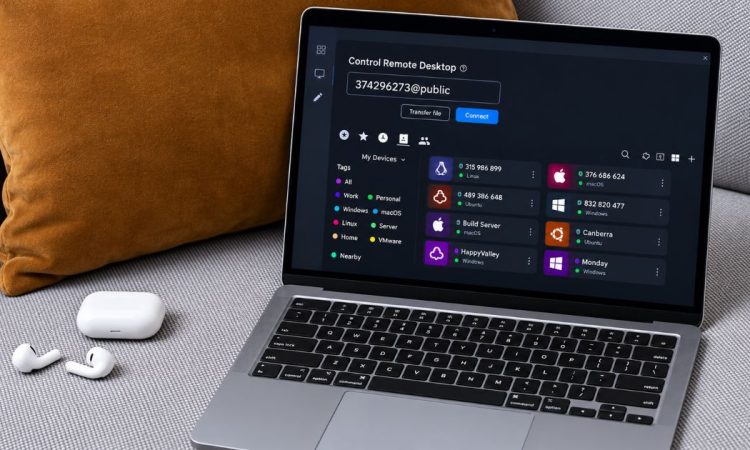
Google’s Chrome Remote Desktop works through the Chrome browser. You install a small extension or app, generate a code and share it with the other person.
It costs nothing for personal use and suits quick family support or reaching your own home PC while travelling. However, it lacks advanced features such as session recording and detailed user management.
Quick Assist and Remote Desktop: Already on Your PC
Windows includes two built-in tools. Quick Assist lets someone help you after you share a short security code. It needs no extra software, which makes it ideal for one-off support.
Remote Desktop Connection suits a different job. It lets you log in to a Windows Pro PC on the same network, or over a VPN, much like sitting at the desk. It is not designed for helping a stranger remotely.
RustDesk: Open-Source and Self-Hosted
RustDesk is a free, open-source tool that has gained attention among privacy-conscious users. You can run your own relay server, so connection data stays under your control.
Setting up a server takes some technical confidence. Beginners can still use the default setup, though self-hosting is where its real value lies.
Splashtop, Zoho Assist and RealVNC for Teams
Businesses often need more than basic screen sharing. Splashtop and Zoho Assist offer remote support, unattended access and user management tools. They suit IT support firms, schools and small offices.
RealVNC takes a more traditional approach. It uses the long-established VNC protocol and works well for technical users who manage devices on a private network.
Most paid tools offer trials or free tiers, so test two or three before committing.
Free vs Paid Remote Desktop Software
Free tools work well for personal tasks. Chrome Remote Desktop and Quick Assist cost nothing and cover most family support needs.
Paid plans add features that businesses rely on: multiple technicians, session reports, custom branding and priority help. If clients depend on you, those extras justify the cost.
Open-source options like RustDesk sit in between. The core software is free, but you may pay for hosting and spend time on maintenance.
How to Choose the Right TeamViewer Alternative
Start with your main use case, then work through these questions.
- Who will use it? Personal use and business use often fall under different licences. Read the terms carefully before relying on a free plan.
- Which devices must connect? Check support for Windows, macOS, Linux, Android and iOS. Some tools limit mobile control.
- Do you need unattended access? This lets you reach a computer when nobody is sitting at it. It is useful for office PCs but needs stronger security.
- How good is your connection? Test speed and lag on your own broadband before committing.
- What will it cost? Compare yearly pricing in pounds and check whether VAT is included.
What UK Businesses Should Check
If you support customers or staff, remote sessions may expose personal data. UK GDPR rules may apply, so choose a provider that explains where it processes data and how it protects sessions.
Look for encryption, access logs and clear privacy terms. Getting written permission from clients before you connect is also good practice. The Information Commissioner’s Office offers free guidance for small organisations.
How to Keep Remote Access Secure
Remote access gives someone full control of a device, so security matters. A few habits reduce the risk considerably.
- Turn on two-factor authentication wherever the tool offers it.
- Use a strong, unique password for every remote access account.
- Keep the software updated, since updates fix security flaws.
- Disable unattended access when you no longer need it.
- Only accept connection requests you expect.
Scammers also pose as support staff and ask victims to install remote access software. If someone phones unexpectedly and asks for a code, hang up. The National Cyber Security Centre and Action Fraud both publish guidance on spotting tech support scams.
How to Switch to a TeamViewer Alternative Smoothly
A planned move prevents lost access. Follow these steps.
- Make a list of the computers you currently reach with TeamViewer.
- Choose one tool and test it on a spare device first.
- Install it on each machine and set a strong password.
- Ask regular users to practise a short test session.
- Remove the old software once everything works.
Keep TeamViewer installed for a week or two as a backup. That way, nobody gets locked out if a setting goes wrong. Document each device’s name and login details in a secure password manager.
Common Mistakes to Avoid
Many people rush the choice and regret it later. Avoid these slip-ups.
- Choosing purely on price without reading the licence terms.
- Leaving unattended access switched on for unused devices.
- Sharing session codes over unsecured channels, such as public posts.
- Skipping updates because the tool seems to work fine.
- Forgetting that remote tools need a stable connection at both ends.
- Ignoring mobile needs, then discovering the tool cannot control a phone.
Frequently Asked Questions
What is the best free TeamViewer alternative?
For personal use, Chrome Remote Desktop and Microsoft Quick Assist are strong free choices. RustDesk is another free option if you want open-source software and are comfortable with some setup.
Is AnyDesk safer than TeamViewer?
Neither tool is automatically safer. Both use encryption, and your habits matter more. Use strong passwords, enable two-factor authentication, update regularly and never share access codes with unknown callers.
Can I use a TeamViewer alternative on a Mac or phone?
Yes. AnyDesk, Splashtop, Zoho Assist and RealVNC support macOS, and most also offer Android and iOS apps. Check each tool’s feature list, because mobile control varies.
Can I use free remote desktop software for work?
Often not. Many free plans cover personal use only. Read the licence, and choose a paid plan if you support clients or colleagues commercially, to stay within the terms.
Conclusion
Choosing a TeamViewer alternative comes down to who you support and how often. Chrome Remote Desktop and Quick Assist handle family help at no cost. AnyDesk, Splashtop and Zoho Assist suit small businesses, while RustDesk rewards those who want control over their data. Whatever you pick, read the licence, switch on two-factor authentication and keep a backup until the move is complete. Take an hour to test one or two tools on your own devices, and you will soon find the right fit for your needs.
for more information click here