
If your iPhone is not ringing, showing notifications, or alerting you to incoming messages, Do Not Disturb could be the reason. Apple’s Focus features are designed to reduce interruptions, but sometimes Do Not Disturb can remain enabled when you no longer need it.
Fortunately, learning how to turn off Do Not Disturb on iPhone is quick and straightforward. You can disable it from Control Center, the Settings app, or by changing your Focus settings if Do Not Disturb keeps turning on automatically.
In this guide, we explain everything you need to know, including how to turn off Do Not Disturb on different iPhone models, what to do when it turns back on by itself, and how to customize the feature instead of disabling it completely.
What Is Do Not Disturb on iPhone?
Do Not Disturb is part of Apple’s Focus system. It is designed to help you concentrate, relax, sleep, work, or avoid unnecessary interruptions.
When Do Not Disturb is active, your iPhone can silence calls, alerts, and notifications depending on your settings. You may still receive messages and notifications, but your iPhone may not alert you in the usual way.
Do Not Disturb can be useful during:
- Meetings
- Classes
- Sleeping
- Driving
- Studying
- Working
- Watching movies
- Important events
- Quiet or personal time
However, if you forget that it is enabled, you may wonder why your iPhone is not making sounds or displaying notifications normally.
The good news is that you can usually turn it off in just a few taps.
How to Turn Off Do Not Disturb on iPhone
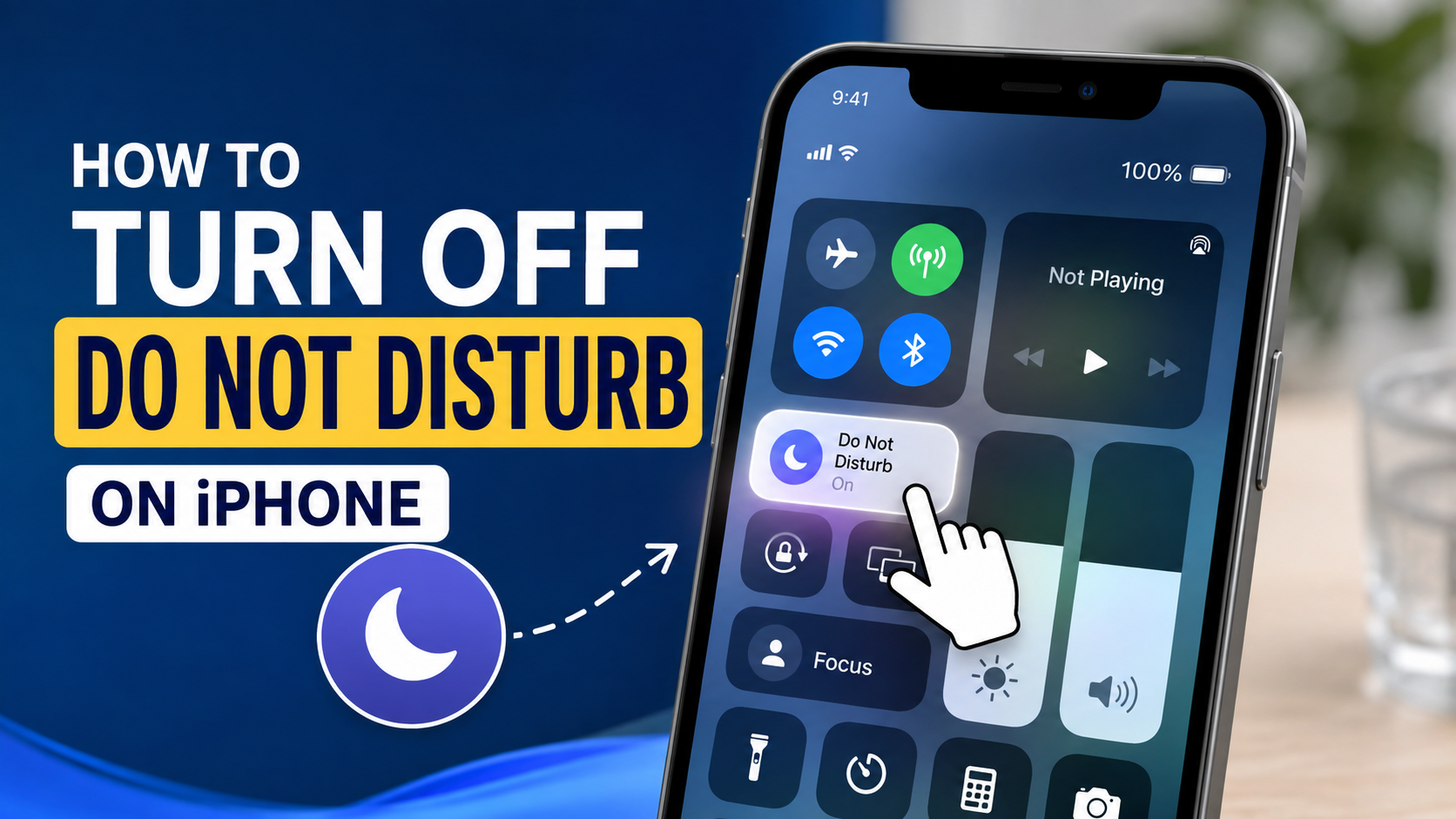
The easiest way to turn off Do Not Disturb is through Control Center.
The exact method for opening Control Center depends on your iPhone model.
Turn Off Do Not Disturb on an iPhone With Face ID
If your iPhone has Face ID and does not have a traditional Home button, follow these steps:
- Unlock your iPhone or wake the screen.
- Swipe down from the top-right corner of the screen.
- Look for the Focus button.
- Tap the active Do Not Disturb option.
- Do Not Disturb should turn off immediately.
Once it is disabled, the crescent moon symbol associated with Do Not Disturb should no longer indicate that the Focus mode is active.
You can then return to your Home Screen and check whether notifications and alerts are working normally.
Turn Off Do Not Disturb on an iPhone With a Home Button
Older iPhone models with a Home button generally open Control Center differently.
To disable Do Not Disturb:
- Wake your iPhone.
- Swipe up from the bottom edge of the screen.
- Find the Focus or Do Not Disturb control.
- Tap Do Not Disturb to disable it.
The change should take effect immediately.
If you are unsure whether Do Not Disturb has been turned off, check the Control Center again. The active Focus mode should no longer be enabled.
How to Turn Off Do Not Disturb Through Settings
Another way to disable Do Not Disturb is through the Settings app.
This method is especially useful if you want to investigate why Do Not Disturb is enabled or if you want to change its schedule.
Follow these steps:
- Open Settings on your iPhone.
- Tap Focus.
- Select Do Not Disturb.
- Turn off the Do Not Disturb option if it is currently active.
The Settings method gives you more control than simply using Control Center.
You can also review schedules and automation settings from this area.
How to Turn Off Do Not Disturb From the Lock Screen
Depending on your iPhone’s software version and Lock Screen setup, you may also be able to manage Focus directly from the Lock Screen.
If a Focus mode is currently active, the Lock Screen can indicate that a Focus is enabled.
To change it:
- Wake your iPhone.
- Touch and hold the Lock Screen.
- Look for the current Focus indicator.
- Select the Focus option.
- Choose a setting without Do Not Disturb.
This can be particularly convenient when you notice that your notifications are being silenced without opening Settings.
Why Does Do Not Disturb Keep Turning On?
One of the most common problems is that Do Not Disturb turns off successfully but later comes back on.
This usually happens because of a schedule, automation, or Focus setting.
If Do Not Disturb keeps activating, you need to check the Focus settings rather than simply turning it off each time.
Check Your Do Not Disturb Schedule
Your iPhone can automatically enable Do Not Disturb according to a schedule.
For example, you might have previously configured it to activate every night.
To check for scheduled activation:
- Open Settings.
- Tap Focus.
- Select Do Not Disturb.
- Look for scheduled or automated activation options.
- Disable any schedule you no longer want.
If a schedule is active, simply switching off Do Not Disturb may not permanently solve the problem.
The schedule could activate it again at the next specified time.
Check Smart Activation
Some Focus settings can use information such as your location, time, or other activity to determine when a Focus should be activated.
If Do Not Disturb seems to activate unexpectedly, check its automation settings.
Open:
Settings > Focus > Do Not Disturb
Then review the available automation options.
If you do not want Do Not Disturb to activate automatically, remove or disable the relevant automation.
How to Stop Do Not Disturb From Turning On at Night
Many iPhone users enable Do Not Disturb while sleeping and later forget that an automatic schedule was created.
If this is happening to you, check your Focus schedule.
Open:
Settings > Focus > Do Not Disturb
Review the scheduled times and remove the schedule if you want Do Not Disturb to remain off.
You may also want to check your other Focus modes, especially if you use Sleep Focus.
Do Not Disturb vs Sleep Focus
Do Not Disturb and Sleep Focus are related but are not exactly the same thing.
Sleep Focus is designed specifically for bedtime and sleeping. If your iPhone continues to silence notifications during certain hours, Sleep Focus may be responsible rather than Do Not Disturb itself.
If you experience this issue, check:
Settings > Focus > Sleep
Review the schedule and settings associated with Sleep Focus.
How to Turn Off Do Not Disturb When It Is Stuck
Sometimes an iPhone may appear to have Do Not Disturb enabled even after you try to turn it off.
If this happens, try these troubleshooting steps.
Restart Your iPhone
A simple restart can resolve temporary software problems.
To restart your iPhone, use the appropriate button combination for your model and follow the on-screen power-off slider.
After the iPhone shuts down, turn it back on and check whether Do Not Disturb is still active.
Check Focus Settings Again
After restarting, open:
Settings > Focus
Check Do Not Disturb and other Focus modes.
Make sure there is no schedule or automation causing the mode to reactivate.
Check Your Apple Watch
If you use an Apple Watch with your iPhone, Focus settings can sometimes be synchronized between your devices.
This means a Focus mode activated on one device may also affect another device, depending on your settings.
If Do Not Disturb keeps coming back, check your Apple Watch’s Focus settings as well.
You can review device synchronization options under your iPhone’s Focus settings.
How to Turn Off Do Not Disturb Without Disabling Notifications Completely
You do not necessarily need to disable every Focus feature just because you want to receive important notifications.
Instead, you can customize Do Not Disturb.
For example, you can configure it so that calls or notifications from selected people are allowed through.
This can be useful if you want fewer distractions but still need to remain reachable by family members, colleagues, or other important contacts.
Go to:
Settings > Focus > Do Not Disturb
From there, review the People and Apps settings available for your iPhone.
You can customize which people and apps are allowed to notify you while the Focus is active.
How to Turn Off Do Not Disturb for One Person
If your goal is to receive notifications from a specific person rather than completely disabling Do Not Disturb, you may be able to add that person to your allowed notifications.
Open the Do Not Disturb settings and look for the option to customize people who can notify you.
Add the contact you want to hear from.
This means you can continue using Do Not Disturb while making exceptions for important contacts.
How to Turn Off Do Not Disturb for Specific Apps
You can also customize which apps are allowed to send notifications during a Focus mode.
For example, you might want to silence social media apps while still receiving notifications from:
- Phone
- Messages
- Work applications
- Calendar
- Emergency-related apps
Open your Do Not Disturb settings and review the allowed apps section.
This approach gives you more control than simply switching Focus on or off.
What Happens When You Turn Off Do Not Disturb?
When Do Not Disturb is turned off, your iPhone returns to its normal notification behavior, subject to your other notification and sound settings.
You may start receiving:
- Notification sounds
- Calls
- Text message alerts
- App notifications
- Lock Screen alerts
- Other configured alerts
However, turning off Do Not Disturb does not automatically fix other notification problems.
For example, if an app’s notifications are disabled in Settings, turning off Focus will not enable them.
Do Not Disturb Is Off but My iPhone Still Does Not Ring
If you have turned off Do Not Disturb and your iPhone is still silent, there are several other things to check.
Check Silent Mode
Your iPhone may be in Silent Mode.
Depending on your iPhone model, this can involve the Ring/Silent switch or the Action button.
Make sure the phone is configured to ring when you expect incoming calls and notifications to make sound.
Check the Volume
Press the volume buttons to make sure the alert volume has not been reduced too far.
You can also review sound settings under:
Settings > Sounds & Haptics
Check Notification Settings
If only one app is failing to send alerts, check that app’s notification permissions.
Go to:
Settings > Notifications
Select the relevant app and make sure notifications are enabled.
Check Other Focus Modes
Do Not Disturb may be off while another Focus mode is active.
Open Control Center and check the Focus section.
You might find that another Focus, such as Personal, Work, Fitness, or Sleep, is currently enabled.
How to Disable All Focus Modes
If you want to make sure no Focus mode is currently interfering with notifications, open Control Center.
On modern iPhones:
- Swipe down from the top-right corner.
- Tap Focus.
- Check which Focus is active.
- Turn off the active Focus mode.
You can also review all Focus modes under:
Settings > Focus
Remember that different Focus modes can have different schedules and notification rules.
How to Prevent Accidental Do Not Disturb Activation
If you frequently turn on Do Not Disturb accidentally, consider reviewing your Lock Screen and Control Center habits.
You can also review your Focus schedules and automations.
If a Focus mode is being activated by an automation, removing that automation is often the best solution.
It is also worth checking whether another Apple device is sharing Focus status with your iPhone.
Do Not Disturb on Older iPhones
The exact appearance of Focus controls can vary depending on your iPhone model and iOS version.
Older versions of iOS used a more direct Do Not Disturb control, while newer versions place Do Not Disturb within Apple’s broader Focus system.
The basic idea remains the same:
Control Center → Focus → Do Not Disturb → Turn Off
If you cannot find the exact wording shown in this guide, look for the crescent moon symbol or the Focus section.
Frequently Asked Questions
How do I quickly turn off Do Not Disturb on my iPhone?
Open Control Center, tap Focus, and then tap Do Not Disturb to disable it. This is usually the fastest method.
Why can’t I turn off Do Not Disturb?
If Do Not Disturb appears to return after you disable it, check your Focus schedules and automations. Another Focus mode may also be active.
Why does Do Not Disturb turn on automatically?
A schedule or automation may be configured to activate it at a specific time, location, or based on another condition. Check Settings > Focus > Do Not Disturb.
Does Do Not Disturb block calls?
Do Not Disturb can silence calls and notifications depending on your configured Focus settings. You can customize which people are allowed to contact you.
Does turning off Do Not Disturb turn off Focus?
Turning off Do Not Disturb disables that particular Focus mode. Other Focus modes may still be available or active.
Why are my notifications still silent after turning off Do Not Disturb?
Check Silent Mode, volume, notification permissions, and other active Focus modes. Do Not Disturb is only one of several settings that can affect alerts.
Final Thoughts
Knowing how to turn off Do Not Disturb on iPhone can save you from missing important calls, messages, reminders, and app notifications.
For most users, the quickest solution is to open Control Center, tap Focus, and turn off Do Not Disturb. If the feature keeps coming back, the problem is usually related to a schedule, automation, another Focus mode, or synchronization with another Apple device.
If you only want fewer interruptions rather than completely disabling Do Not Disturb, Apple’s Focus settings also let you customize which people and apps can still notify you.
The important thing is to check both the immediate Focus status and the underlying schedule or automation. Once those settings are configured correctly, your iPhone should behave the way you expect and deliver notifications when you need them.
for more information click here