
The UK keyboard layout is one of the most widely used keyboard configurations in Britain and in many other countries that follow the British English typing standard. Although it looks very similar to the US keyboard layout, there are several important differences in the position of symbols, punctuation marks, and certain keys.
For everyday computer users, the differences may not seem significant at first. However, if you regularly switch between computers, use a different operating system, purchase an imported keyboard, or work with programming and special characters, understanding the UK keyboard layout can save you time and frustration.
In this guide, we will explain what the UK keyboard layout is, how it differs from the US layout, where important symbols are located, how to switch to a UK keyboard on Windows and other devices, and why choosing the correct layout matters.
What Is the UK Keyboard Layout?
The UK keyboard layout is a keyboard configuration designed primarily for British English users. It determines which characters appear when you press individual keys and how combinations such as Shift + key or AltGr + key behave.
The physical keyboard and the software keyboard layout work together. A keyboard may have a particular arrangement of printed symbols, but your operating system also needs to be configured to use the corresponding layout.
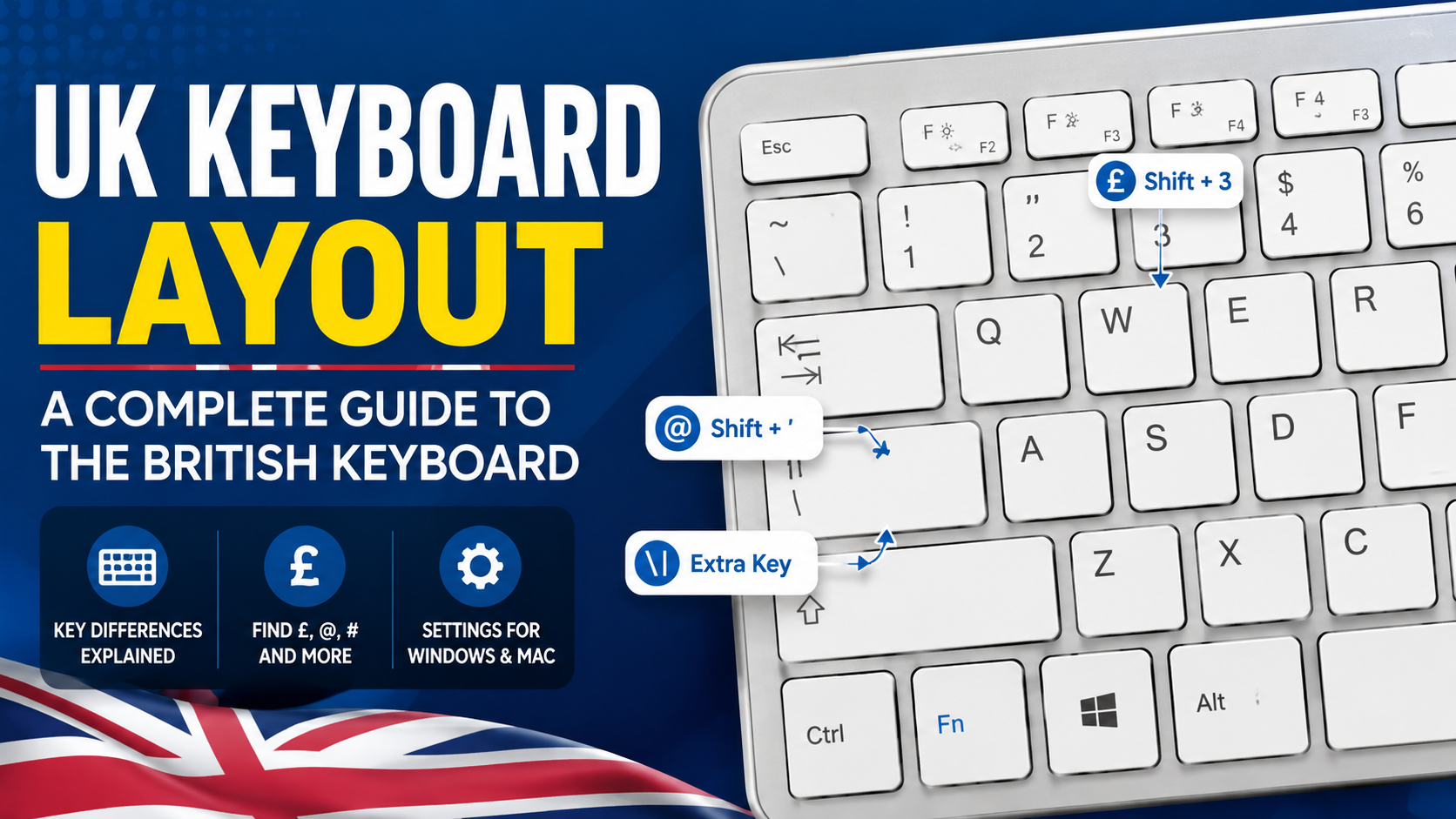
For example, on a standard UK keyboard, the @ symbol is generally accessed with Shift + apostrophe, while on a standard US keyboard, it is usually accessed with Shift + 2.
This is one of the easiest ways to notice that your computer is using the wrong keyboard layout.
The UK layout is commonly identified as English (United Kingdom) or United Kingdom keyboard in operating system settings.
Why Does the UK Keyboard Layout Matter?
Keyboard layouts are more important than many people realize. If your computer is configured for the wrong layout, the letters themselves will usually remain in familiar positions, but many symbols can appear in unexpected places.
This can become particularly annoying when entering:
- Email addresses
- Passwords
- Website URLs
- Currency symbols
- Programming code
- Mathematical expressions
- Punctuation
- Special characters
Imagine trying to type an email address containing an @ symbol and discovering that the key combination you normally use produces quotation marks instead. This can happen when a UK keyboard is physically connected but Windows is configured for the US layout.
Choosing the correct keyboard layout makes typing more predictable and helps you take advantage of the symbols printed on your physical keyboard.
UK Keyboard Layout vs US Keyboard Layout
The UK and US keyboard layouts are very similar because both are based on the QWERTY arrangement. However, there are several noticeable differences.
One of the biggest differences concerns punctuation and symbols.
On a standard UK keyboard:
- The £ symbol is available directly through the number 3 key using Shift.
- The @ symbol is normally accessed with Shift + apostrophe.
- The quotation mark and @ positions differ from the US layout.
- The Enter key is typically a taller, two-row key.
- There is an additional key near the left Shift key on many UK keyboards.
- Some punctuation marks have different positions.
On a US keyboard:
- The $ symbol is associated with Shift + 4.
- The @ symbol is associated with Shift + 2.
- The quotation mark is associated with Shift + apostrophe.
- The Enter key and left Shift arrangement differ from many UK keyboards.
These differences may look small, but they can make a major difference when switching between layouts.
Main Features of the UK Keyboard Layout
A typical UK keyboard follows the familiar QWERTY arrangement while adding several characteristics associated with British English.
QWERTY Letter Arrangement
The main letter section uses the traditional QWERTY arrangement:
Q W E R T Y U I O P
followed by:
A S D F G H J K L
and:
Z X C V B N M
This arrangement is familiar to users throughout the English-speaking world.
British Pound Symbol
One of the most useful features of a UK keyboard is the easy access to the £ pound sign.
On many standard UK keyboards:
Shift + 3 = £
This is particularly convenient for users who frequently type prices in British pounds.
At Symbol
The @ symbol is commonly used for email addresses and social media usernames.
On a standard UK keyboard:
Shift + ‘ = @
This differs from the typical US layout, where:
Shift + 2 = @
If you frequently move between UK and US keyboards, remembering this difference can prevent typing mistakes.
Quotation Marks
The position of quotation marks is another important difference.
On a UK keyboard, the quotation mark is normally associated with the apostrophe key and can be typed using:
Shift + ‘ = “
Meanwhile, the @ symbol is produced using the same key without confusing it with the US arrangement.
The UK Keyboard Enter Key
The Enter key is another physical difference that users may notice.
Many standard UK keyboards use a large, vertically oriented Enter key. This design is sometimes described as an ISO-style keyboard arrangement.
The larger Enter key can make it easy to locate while typing, although the exact design can vary between laptop keyboards, desktop keyboards, and manufacturers.
Some compact keyboards may use a different physical design while still supporting the UK software layout.
The Extra Key Near the Left Shift Key
Many UK physical keyboards contain an additional key between the left Shift key and the Z key.
This key can be used for characters such as:
\ |
depending on the keyboard configuration and key combination being used.
This is one reason why a physical UK keyboard can look slightly different from a typical US keyboard.
Backslash and Pipe Symbols
The backslash ** and pipe | are particularly important for programmers, developers, system administrators, and advanced computer users.
These characters are commonly used in:
- Programming languages
- Command-line interfaces
- File paths
- Regular expressions
- Shell commands
- Configuration files
Because their positions can differ between keyboard layouts, developers who switch between UK and US computers may occasionally press the wrong key.
UK Keyboard Layout on Windows
Windows supports multiple keyboard layouts, including the United Kingdom layout.
If you have a UK physical keyboard but Windows is using another layout, you can change the keyboard language and layout through Windows settings.
On recent versions of Windows, you can generally find the relevant options under:
Settings → Time & language → Language & region
From there, select English (United Kingdom) and check the installed keyboard options.
You can add the UK keyboard layout if it is not already installed.
After adding it, Windows may allow you to switch between installed layouts using the language indicator in the taskbar.
Keyboard Shortcut for Switching Layouts
Windows computers with multiple keyboard layouts can usually switch between them using a keyboard shortcut.
Common options include:
Windows key + Space
This opens the available keyboard layouts and allows you to select the one you need.
Depending on your Windows configuration, other shortcuts may also be available.
If your symbols suddenly appear incorrectly, checking the active keyboard language should be one of the first troubleshooting steps.
How to Know If You Are Using the Wrong Layout
There are several clues that your computer may be configured incorrectly.
For example, if you press:
Shift + 2
and receive an @ symbol, your computer may be using the US layout rather than the UK layout.
Similarly, if:
Shift + 3
does not produce the expected pound symbol on a physical UK keyboard, your software layout may not match your hardware.
Other clues include quotation marks, apostrophes, backslashes, and various punctuation symbols appearing in unexpected locations.
UK Keyboard Layout on Mac
Apple computers can also use the British keyboard layout.
On a Mac, keyboard settings are generally available through:
System Settings → Keyboard
The exact menu names can vary depending on your version of macOS.
If you have a British physical keyboard, selecting the appropriate British or UK input source ensures that the keys behave as expected.
Mac users who frequently switch between languages can also configure multiple input sources and switch between them when necessary.
UK Keyboard Layout on Linux
Linux distributions also support UK keyboard layouts.
The exact process depends on the Linux distribution and desktop environment, but users can generally find keyboard configuration under system settings.
For example, a user may select:
English (UK)
as the keyboard layout.
Linux users working in terminals should pay particular attention to keyboard layouts because characters such as:
/\|@#~
are frequently used in commands and configuration files.
UK Keyboard Layout for Programming
Developers should understand their keyboard layout because programming involves many symbols that are less important in everyday writing.
Programming frequently requires characters such as:
{ } [ ] ( ) < > / \ | @ # $ % ^ &
Their exact locations depend on the physical keyboard and software configuration.
A UK keyboard is perfectly suitable for programming. However, developers working with international teams may encounter different layouts when using remote machines, virtual environments, or cloud development systems.
Understanding where important symbols are located makes it easier to work across different systems.
UK Keyboard Layout and the Hash Symbol
The # symbol is another character whose position can cause confusion.
On many UK keyboards, the hash symbol has its own key near the Enter key.
This is different from the typical US keyboard arrangement.
The hash symbol is commonly used in:
- Programming
- Social media hashtags
- Shell commands
- URLs
- Technical documentation
If you have recently switched from a US keyboard to a UK keyboard, this is one of the keys worth learning.
UK Keyboard Layout and the Euro Symbol
Some UK keyboard configurations can produce additional currency symbols using combinations involving the AltGr key.
For example, depending on the keyboard and operating system configuration, users may be able to access characters such as the euro symbol.
The exact behavior can depend on the installed keyboard layout and operating system, so users who regularly type international currencies may want to check their specific configuration.
What Is AltGr?
The AltGr key is found on many international keyboard layouts and is especially useful for accessing additional characters.
On a UK keyboard, AltGr can provide access to symbols that are not printed as the primary character on a key.
For example, certain keys may produce additional characters when combined with AltGr.
This gives the keyboard more functionality without requiring a larger number of physical keys.
Physical Keyboard vs Software Layout
One of the most important concepts to understand is that the physical keyboard and software keyboard layout are not necessarily the same thing.
A keyboard can physically have UK markings while your operating system is configured for US English.
The result can be confusing because:
- The printed symbols do not match what appears on screen.
- Keyboard shortcuts may behave differently.
- Special characters can be difficult to find.
- Password entry can become frustrating.
For the best experience, your physical keyboard and operating system layout should normally match.
UK Keyboard Layout for Laptops
UK laptops usually come with a British keyboard arrangement when purchased from a UK retailer.
However, laptops imported from other countries may use different physical layouts.
This is particularly important when buying:
- Used laptops
- Refurbished computers
- Imported laptops
- International models
- Replacement keyboards
Before purchasing a laptop, check the keyboard photographs carefully rather than assuming that the operating system language tells you the physical keyboard layout.
UK Keyboard Layout for Gaming
Gamers may also benefit from understanding their keyboard layout.
Most gaming commands rely on letters, numbers, and familiar modifier keys, so layout differences are not always noticeable.
However, games that use special symbols, chat commands, or custom key bindings can reveal differences.
If you frequently change keyboards, you may need to reconfigure certain key bindings to ensure everything feels comfortable.
Common UK Keyboard Layout Problems
The @ Key Produces the Wrong Character
This is one of the most common issues.
If Shift + apostrophe does not produce @, check whether your computer is using the correct keyboard layout.
The Pound Sign Does Not Work
If Shift + 3 does not produce £, your computer may be configured for a different layout.
Punctuation Appears Incorrect
Quotation marks, apostrophes, hashes, and other symbols can appear in unexpected places when the physical keyboard and software configuration do not match.
Keyboard Changes Automatically
Windows can sometimes have multiple input layouts installed. Accidentally pressing a shortcut can switch between them.
If this happens frequently, check your installed keyboard languages and remove layouts that you do not need.
Benefits of Using the UK Keyboard Layout
There are several advantages to using a UK keyboard layout if you live or work in Britain.
Easy Access to British Currency
The pound symbol is conveniently placed on the keyboard.
Familiar British Punctuation
The layout is designed around British keyboard conventions.
Widely Supported
Windows, macOS, Linux, ChromeOS, and other major platforms support UK keyboard layouts.
Convenient for British English Users
People who regularly write British English and work with UK-based websites and businesses may find the layout more intuitive.
Is the UK Keyboard Layout Better Than the US Layout?
Neither layout is universally better. The best choice depends on your location, preferences, hardware, and work requirements.
For someone who regularly works in the UK, a UK keyboard is often the most convenient option.
For someone in the United States, the US layout may feel more natural.
Developers and international users may become comfortable with both.
The most important thing is consistency. Once your physical keyboard and operating system use the same layout, typing becomes much easier.
How to Learn the UK Keyboard Layout
If you are switching from another keyboard configuration, you do not need to memorize every key immediately.
Start by learning the most noticeable differences:
- Shift + 3 = £
- Shift + apostrophe = @
- Learn the UK position of the quotation mark.
- Find the hash key.
- Identify the backslash and pipe keys.
- Practice common symbols used in your daily work.
After several days of regular use, the layout should begin to feel natural.
Online typing tests can also help you build familiarity with the keyboard.
Tips for Using a UK Keyboard Efficiently
Match Your Software to Your Hardware
Always try to use the correct software layout for your physical keyboard.
Learn Common Shortcuts
Memorize shortcuts that you use every day rather than trying to learn every key combination.
Check the Language Indicator
If symbols suddenly change, look at your keyboard language indicator.
Practice Special Characters
If you work in programming or technical fields, spend some time learning where brackets, braces, pipes, and backslashes are located.
Avoid Installing Unnecessary Layouts
Having too many keyboard layouts can increase the chance of accidentally switching between them.
Frequently Asked Questions About the UK Keyboard Layout
What is the UK keyboard layout?
The UK keyboard layout is a keyboard configuration designed for British English users. It uses the QWERTY letter arrangement while placing several punctuation marks and symbols differently from the US layout.
Where is the @ symbol on a UK keyboard?
On a standard UK keyboard, the @ symbol is generally typed using Shift + apostrophe.
Where is the £ symbol on a UK keyboard?
On a standard UK keyboard, the pound symbol is usually typed using Shift + 3.
Is a UK keyboard QWERTY?
Yes. A standard UK keyboard uses the QWERTY letter arrangement.
Can I use a UK keyboard in another country?
Yes. A UK keyboard can be used anywhere as long as your computer supports the UK keyboard layout.
Why are my UK keyboard keys typing the wrong symbols?
Your operating system may be configured for a different keyboard layout. Check your language and keyboard settings and select the UK layout.
Is the UK keyboard layout different from the US keyboard layout?
Yes. The main letter arrangement is similar, but several symbols and punctuation marks are positioned differently.
Final Thoughts
The UK keyboard layout is a familiar and practical configuration for British English users. While it looks similar to the US QWERTY layout, differences involving the @ symbol, pound sign, quotation marks, hash symbol, Enter key, and other characters make it important to select the correct configuration.
For most users, the key is simply to ensure that the physical keyboard and operating system are using matching layouts. Once that is done, everyday typing becomes much more straightforward.
Whether you are buying a new laptop, setting up Windows, switching from a US keyboard, learning to code, or troubleshooting unexpected symbols, understanding the UK keyboard layout can help you work more efficiently.
If you regularly use British English, type pound values, communicate with UK businesses, or simply prefer the British keyboard arrangement, the UK layout is a reliable choice. Learning a few of its key differences can make the transition much easier and prevent many of the common typing problems associated with incorrect keyboard settings.
for more information click here