
Keeping your iPhone apps updated is one of the easiest ways to get better performance, new features, security improvements, and bug fixes. Whether you use social media apps, banking apps, games, productivity tools, or streaming services, developers regularly release updates to improve how their apps work.
If you are wondering how to update iPhone apps, the process is usually quick and straightforward. Apple provides automatic updates, but you can also manually check for available updates whenever you want. Knowing how both methods work can help you make sure your apps stay current.
In this guide, we will explain how to update iPhone apps step by step, how automatic updates work, what to do when apps will not update, and how to manage app updates when storage, Wi-Fi, or other issues get in the way.
Why Should You Update iPhone Apps?
Before looking at the steps, it is useful to understand why app updates matter.
Developers release updates for many different reasons. Some updates introduce exciting new features, while others quietly fix problems in the background.
1. Get New Features
One of the biggest reasons to update an app is to access new features. Developers frequently add new tools, redesigned interfaces, improved settings, and other functionality.
For example, a messaging app might introduce new chat options, while a photo-editing app could add additional filters or editing controls.
If you continue using an older version, you may not have access to these improvements.
2. Improve Security
App updates can include important security fixes. Developers may discover vulnerabilities that could potentially affect users and release a newer version to address them.
For apps that handle sensitive information, such as banking, shopping, email, or password-management apps, keeping the software updated is especially important.
3. Fix Bugs and Crashes
No app is perfect. Sometimes an update fixes problems such as unexpected crashes, freezing, slow loading, login errors, or features that do not work correctly.
If an app has recently started behaving strangely, checking for an update is one of the first troubleshooting steps worth trying.
4. Improve Performance
Updates can also make an app more efficient. Developers may optimize how an app uses memory, processing power, network connections, or battery resources.
An updated app may therefore feel faster or more stable than an older version.
5. Maintain Compatibility
As Apple updates iOS, developers may need to update their apps to work properly with newer versions of the operating system.
Running outdated apps for too long can sometimes lead to compatibility problems.
How to Update iPhone Apps Manually
If you want to control when your apps are updated, you can manually update them through the App Store.
The exact appearance of the App Store can change slightly between iOS versions, but the general process is similar.
Step 1: Open the App Store
Start by unlocking your iPhone and opening the App Store.
The App Store is where you can download new apps and manage updates for apps already installed on your device.
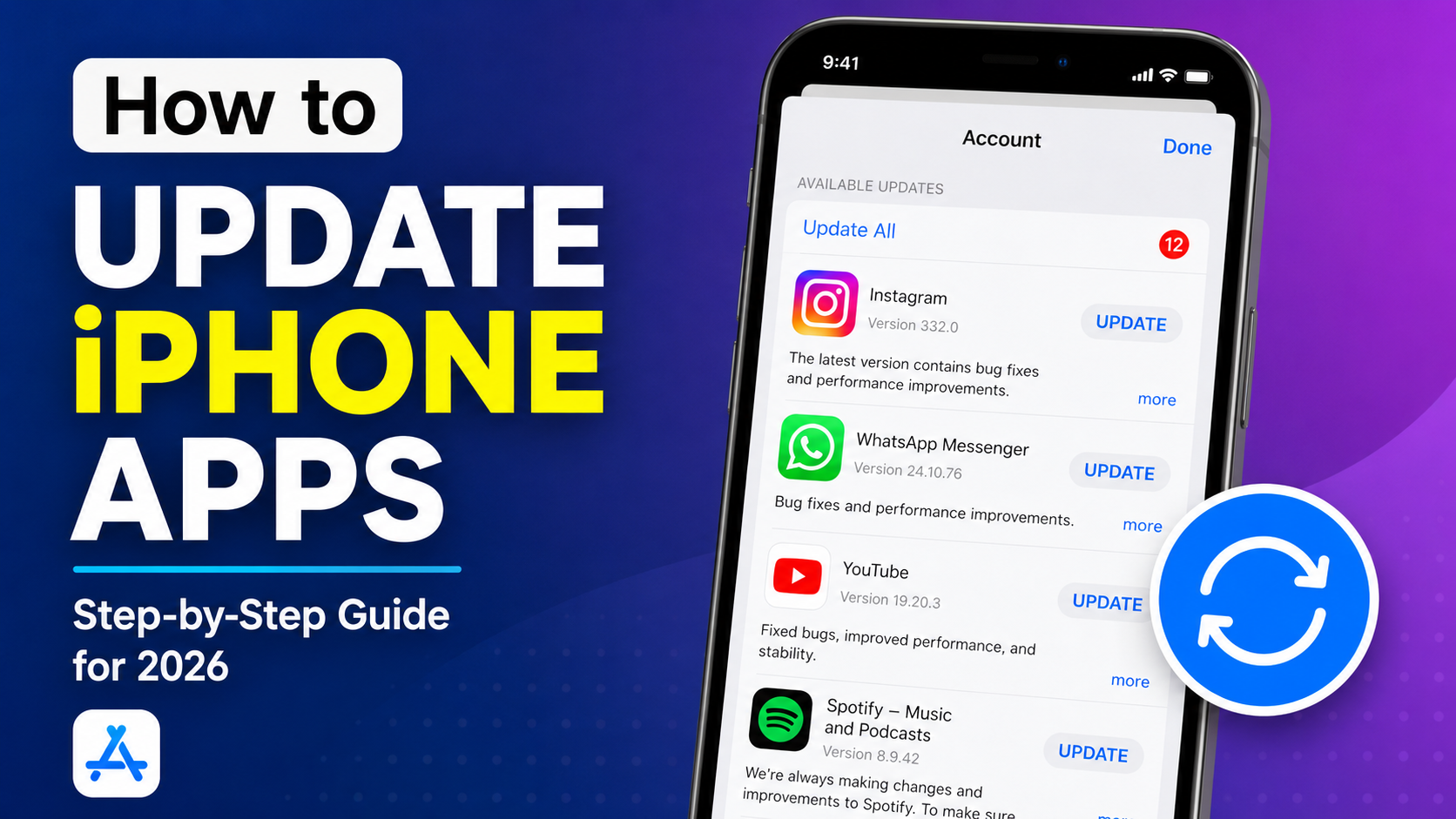
Step 2: Tap Your Account Picture
Look for your profile picture or account icon near the top of the App Store screen.
Tap it to open your App Store account page.
This section contains information about your Apple Account, purchases, subscriptions, and available app updates.
Step 3: Find Available Updates
On the account page, look for the area showing available updates.
If updates are available, you should see apps that have newer versions ready to install.
You can review the list before deciding which apps to update.
Step 4: Update an Individual App
If you only want to update one particular app, find it in the available updates list and tap the Update button next to it.
The iPhone will begin downloading and installing the latest version.
This option is useful if you are trying to fix a problem with one app without updating everything else.
Step 5: Update All Apps
If several apps have updates available, look for the option to Update All.
Tapping this option tells your iPhone to download and install the available updates.
Depending on how many apps need updating and the size of the downloads, the process may take a few minutes or longer.
How to Turn On Automatic App Updates
Manually checking for updates is not necessary if you prefer to let your iPhone handle the process automatically.
Automatic updates can save time and reduce the chance that you forget to update an important app.
Check Automatic Update Settings
Open the Settings app on your iPhone.
Then look for the settings related to the App Store and app downloads.
Make sure the option for automatic app updates is enabled.
When automatic updates are active, your iPhone can update compatible apps without requiring you to manually install every update.
Why Automatic Updates Are Convenient
Automatic updates are particularly useful if you have many apps installed.
Imagine having 50, 100, or even more apps on your iPhone. Checking every app individually would be inconvenient.
Automatic updating handles much of that work for you.
However, some people prefer manual updates because they want to control when downloads happen or review changes before installing them.
How to Update iPhone Apps Without Wi-Fi
Many people wonder whether they can update iPhone apps using mobile data instead of Wi-Fi.
The answer depends on your iPhone’s settings, your mobile data plan, and the size of the update.
If your App Store settings allow downloads over cellular data, your iPhone may be able to download updates using your mobile connection.
However, large app updates can consume significant amounts of mobile data.
Should You Use Mobile Data for App Updates?
If you have a limited mobile data allowance, Wi-Fi is usually the better choice.
For example, updating several large games could consume a substantial amount of data.
If you have an unlimited or generous data plan, updating over cellular may be more practical.
You can review your App Store and cellular settings to control how downloads are handled.
How to Update Apps on iPhone When You Have Many Updates
If you have not updated your apps for several weeks or months, you may see a long list of available updates.
There is usually no need to update each app individually.
The easiest approach is to use the Update All option from the App Store’s update section.
Your iPhone will process the available updates.
The total time depends on several factors, including:
- Number of apps being updated
- Size of each update
- Internet connection speed
- Available storage
- iPhone performance
- App Store server conditions
It is generally a good idea to keep your iPhone connected to power if you have many large updates to install.
What to Do If iPhone Apps Won’t Update
Sometimes you may tap the update button and nothing happens.
Other times, an app may remain stuck while downloading or installing.
Fortunately, several troubleshooting methods can help.
Check Your Internet Connection
A weak or unstable internet connection is one of the most common reasons an app update may fail.
Try opening Safari and visiting a website.
If webpages are loading slowly or not loading at all, the problem may be your internet connection rather than the App Store.
You can try switching between Wi-Fi and cellular data or reconnecting to your Wi-Fi network.
Check Your iPhone Storage
Apps need enough free storage space to download and install updates.
If your iPhone is almost full, updates may fail.
To check available storage, open Settings and look for the iPhone Storage section.
Review the apps, photos, videos, and other files using the most space.
If necessary, remove content you no longer need.
Freeing Up Storage
Large videos and unused apps can consume a lot of storage.
You may be able to free up space by:
- Removing unused apps
- Deleting unnecessary videos
- Clearing unwanted downloads
- Removing duplicate photos
- Reviewing large attachments
- Moving important files to another storage solution
After freeing up space, try updating the app again.
Restart Your iPhone
A simple restart can sometimes resolve temporary software problems.
If an app update is stuck, restart your iPhone and then return to the App Store.
After restarting, check whether the update continues normally.
Restarting can clear temporary system issues that may interfere with downloads.
Check Your Apple Account
App downloads and updates are associated with your Apple Account.
If you are experiencing account-related problems, an app may fail to update correctly.
Check that you are signed in with the appropriate Apple Account and that there are no outstanding account issues.
Some apps may also have been downloaded using a different Apple Account. In such situations, updating them can sometimes require access to the account originally used to obtain the app.
Check Your Payment Information
Most free app updates do not require you to purchase anything.
However, Apple Account billing problems can sometimes affect downloads, particularly if you have subscriptions or previous purchases associated with your account.
If you receive a billing-related message, review your payment information and resolve any outstanding issue.
Update iOS
If an app requires a newer version of iOS, you may need to update your iPhone’s operating system before the app can be updated.
To check for an iOS update, open Settings and go to the software update section.
If a compatible update is available, follow Apple’s instructions to install it.
Keeping iOS updated can improve compatibility between the operating system and your apps.
Why Some Apps May Not Appear in the Update List
You may notice that a particular app does not appear when you check for updates.
That does not necessarily mean something is wrong.
The developer may not have released a new version recently, or your iPhone may already have the latest compatible version.
An app can also become unavailable in certain regions or be removed from the App Store.
If an app is no longer supported by its developer, there may not be a newer version available.
How to Update Apps Automatically and Save Time
For most users, automatic updates are the easiest approach.
Instead of remembering to check the App Store every week, you can allow your iPhone to handle app updates in the background when conditions permit.
This is particularly useful for people who rely on apps for work, communication, banking, travel, or productivity.
However, it is still worth occasionally opening the App Store and checking for updates manually.
This can help you confirm that your apps are current and identify any updates that may need attention.
How Often Should You Update iPhone Apps?
There is no specific schedule that every iPhone user needs to follow.
If automatic updates are enabled, your iPhone can handle many updates for you.
If you update apps manually, checking the App Store once or twice a week is a reasonable habit.
You do not necessarily need to update every app immediately after a new version appears, but security-related updates should generally not be ignored for long.
Apps that handle personal or financial information deserve particular attention.
Do App Updates Delete Your Data?
Normally, updating an app does not delete your existing data.
Your account information, settings, saved content, and other app data should generally remain available after the update.
However, it is still wise to maintain regular backups of important information.
For apps where your data is stored locally, check whether the developer provides cloud synchronization or backup options.
This is especially important before major changes or if you are troubleshooting an app that has stopped working.
Can You Update Apps While Your iPhone Is Charging?
Yes, you can update apps while your iPhone is connected to a charger.
In fact, keeping your iPhone connected to power can be helpful when installing many large updates.
This prevents the battery from becoming low during a lengthy download or installation process.
If you are updating several large games or media-heavy applications, charging your iPhone and using a stable Wi-Fi connection can make the process more convenient.
Tips for Managing iPhone App Updates
Here are some practical tips to make app management easier.
Keep Enough Free Storage
Avoid filling your iPhone completely. Having some free storage makes it easier to install app and iOS updates.
Use Reliable Wi-Fi
For large downloads, a stable Wi-Fi connection can be faster and more economical than mobile data.
Enable Automatic Updates
If you do not want to check the App Store frequently, automatic updates are convenient.
Keep iOS Updated
Apps and iOS work together, so keeping both current can reduce compatibility problems.
Review Large Apps
Games and video-focused apps can become very large. Periodically review your installed apps and remove ones you no longer use.
Don’t Ignore Important Updates
If an app you regularly use has a critical security or compatibility update, it is better to install it rather than continue using an outdated version.
Frequently Asked Questions
How do I update apps on my iPhone?
Open the App Store, tap your account picture, and look for available app updates. You can update individual apps or use the option to update all available apps.
How do I turn on automatic app updates on iPhone?
Open Settings and go to the App Store settings. Look for the automatic app update option and make sure it is enabled.
Why won’t my iPhone update apps?
Possible causes include a poor internet connection, insufficient storage, account problems, outdated iOS software, or temporary App Store issues.
Can I update iPhone apps without Wi-Fi?
Depending on your settings and mobile plan, your iPhone may allow App Store downloads over cellular data. Check your App Store and cellular settings before using mobile data for large updates.
Does updating an iPhone app delete everything?
Normally, updating an app does not delete its existing data. Nevertheless, keeping backups of important information is always recommended.
Should I update all my iPhone apps?
For most users, keeping apps updated is a good practice because updates can include security improvements, bug fixes, performance enhancements, and new features.
Final Thoughts
Learning how to update iPhone apps is simple, but keeping apps current can make a noticeable difference to your overall iPhone experience. Updated apps can provide new features, better performance, improved compatibility, and important security fixes.
You can update apps manually through the App Store when you want complete control, or enable automatic updates and let your iPhone handle much of the process for you.
If an app refuses to update, start with the basics: check your internet connection, make sure you have enough storage, verify your Apple Account, restart your iPhone, and check whether iOS itself needs an update.
For most people, enabling automatic updates combined with occasional manual checks is a convenient approach. It means you can spend less time managing apps and more time using them.
By making app updates part of your normal iPhone maintenance routine, you can help keep your device’s software experience fresh, reliable, and secure.
for more information click here