
You no longer need bulky software to change a file. If you want to edit document online, a browser, a free account and a few minutes are usually enough. Google Docs, Word for the web and several open-source tools let you fix typos, rewrite paragraphs and share changes instantly.
This guide explains how online editing works, which tools suit which file types, and how to protect your work. Whether you are updating a CV, completing a school form or finishing a team report, you will find a method that fits.
We also cover the common snags, such as broken formatting and locked PDFs, so you can avoid wasted time.
What Does It Mean to Edit a Document Online?
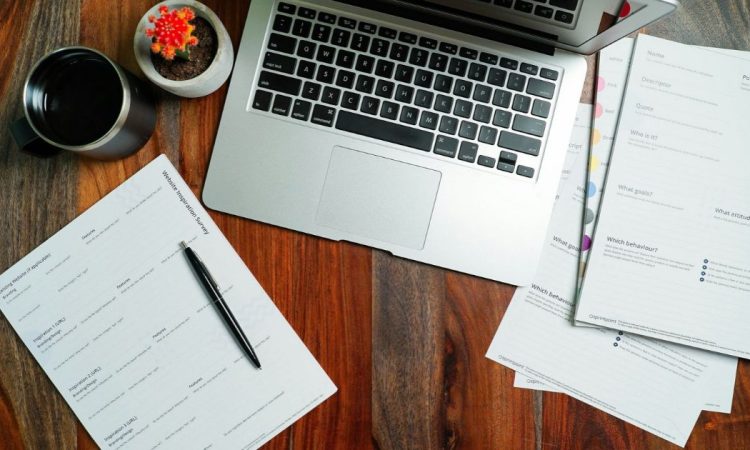
Editing online means you change a file inside a web browser instead of a program installed on your computer. The document usually lives in cloud storage, so you can open it from a laptop, tablet or phone.
Cloud storage simply means files are kept on remote servers and accessed through the internet. Most services save every change automatically. That removes the old worry of losing an hour’s work when your computer crashes.
Online editing also makes teamwork easier. Several people can work on the same file at once, leave comments and see a version history. You can roll back to an earlier draft if someone makes a mistake.
Which Free Tools Let You Edit Documents Online?
Google Docs
Google Docs works in any modern browser and needs a free Google account. It opens .docx files, converts them if you wish, and saves automatically. Its suggesting mode lets you propose changes without overwriting the original text. It suits quick edits, shared drafts and anyone who works across several devices.
Word for the Web
Microsoft offers a free browser version of Word with a Microsoft account. It keeps formatting closer to the original, which matters for CVs, letters and layouts built in desktop Word. The free version has fewer advanced features, so specialist layout tools may be missing. For most everyday edits, that gap rarely causes trouble.
Open-Source and Privacy-Focused Options
LibreOffice is free, open-source software. Collabora Online and OnlyOffice offer browser-based editing built on open-source code, and some organisations host them on their own servers. That gives them more control over where data sits, which can help with privacy rules. Individuals may find them harder to set up than Google Docs.
Which Tool Suits Your Needs?
The best choice depends on what you are editing and who will see it. A simple rule of thumb helps.
- Shared drafts and group projects: Google Docs handles live collaboration smoothly.
- CVs and formal letters: Word for the web keeps Microsoft layouts tidier.
- Sensitive or confidential files: a self-hosted open-source editor gives your organisation more control.
- Scanned paperwork and forms: a dedicated PDF editor works better than a word processor.
Free versions often limit file size, export options or advanced features. Read the limits before you commit a big project to any one service.
How to Edit Document Online: Five Simple Steps
The process is almost identical across services.
- Choose your tool. Pick Google Docs, Word for the web or another editor that supports your file type.
- Upload the file. Sign in, then drag your document into the storage area or use the upload button.
- Open it in the editor. Double-click the file. If the tool asks, choose to edit rather than only view.
- Make your changes. Type, delete, reformat and add comments. Turn on suggesting or tracked changes if others will review your work.
- Save and export. Changes save automatically, but you can download a copy as .docx or PDF for sending by email.
Before you send anything, check the formatting. Fonts, tables and images can shift when a file moves between services, so scan every page once.
How Do You Edit a PDF Online?
PDFs are harder to change than Word files because they are designed to hold a fixed layout. Even so, several web tools let you add text, highlight passages, sign forms or fill in fields.
For full text changes, one simple route is to open the PDF in Google Docs through Google Drive. Google converts it into an editable document, though complex layouts may break. Scanned pages need optical character recognition, known as OCR, which turns images of text into editable words.
Always keep the original PDF. Conversion is rarely perfect, and a backup lets you start again if the result looks wrong.
Can You Edit Documents Online on a Phone or Tablet?
Yes. Google Docs and Microsoft Word both offer free basic mobile apps for Android and iPhone. Apps usually handle typing, comments and basic formatting well.
A small screen makes detailed layout work awkward, though. Save tables, columns and heavy formatting for a laptop. On a phone, stick to quick fixes such as correcting names, dates and typos.
Smart Habits for Cleaner Collaborative Editing
Editing together works best with a few ground rules.
Agree who has the final say before work begins. Use comments for questions and suggestions for wording changes. Name versions clearly, such as ‘Budget_v2_reviewed’, if you export copies. Resolve comment threads once they are settled, so the document stays easy to read.
A short checklist before sharing also helps: spell-check, read the document aloud, and check names, dates and figures. Small errors are easy to miss on screen.
How Can You Keep Your Documents Safe Online?
Convenience is only useful if your files stay private. A few habits make a big difference.
- Use a strong, unique password and switch on two-step verification. The National Cyber Security Centre recommends three random words for passwords.
- Check sharing settings before you send a link. “Anyone with the link” means exactly that.
- Avoid uploading sensitive files, such as passports or medical records, to unfamiliar websites.
- Log out on shared or public computers, and clear downloaded copies.
If a document contains other people’s personal data, UK GDPR rules may apply. The Information Commissioner’s Office offers plain guidance for organisations and small businesses. Read a tool’s privacy policy before trusting it with client or customer information.
Common Problems and How to Fix Them
- Formatting looks different. Fonts may be missing in the browser tool. Switch to a common font such as Arial or Times New Roman, or export to PDF to lock the layout.
- The file opens as read-only. The owner may have restricted editing, or you may be signed into the wrong account. Check your login first, then ask the owner for edit access.
- Changes do not appear for others. This usually means a weak connection. Wait for the “saved” message before closing the tab.
- The document is slow or freezes. Close extra tabs, refresh the page and try a different browser. Splitting very large files into sections can also help.
What Are the Limits of Editing Online?
Online editors are brilliant for everyday work, but they have limits. You need a reasonable internet connection, although Google Docs offers an offline mode if you set it up in advance. Very large files can run slowly in a browser. Complex layouts, such as magazine-style designs or heavily scripted spreadsheets, may need desktop software. Finally, free accounts sometimes come with storage caps, so tidy old files now and then.
Frequently Asked Questions
Can I edit a Word document online for free?
Yes. Upload the file to Google Drive or OneDrive and open it in Google Docs or Word for the web. Both free services need only a personal account.
Do I need to download software to edit a document online?
No. A modern browser and an internet connection are enough. Apps are optional, though they can make editing on a phone or tablet more comfortable.
Is it safe to edit documents online?
It is generally safe with reputable services, strong passwords and two-step verification. Avoid unfamiliar sites for sensitive files, and check sharing settings so only the right people can open your links.
How do I edit a PDF online without losing formatting?
Use a dedicated PDF editor for small text changes instead of converting the whole file. Conversion to a word processor can shift fonts, images and tables, so keep the original safe.
Conclusion
You can edit document online with nothing more than a browser and a free account. Google Docs suits shared drafts, Word for the web protects Microsoft layouts, and open-source editors give organisations greater control. PDFs need extra care, so always keep the original. Protect your files with strong passwords, two-step verification and careful sharing settings. Choose the tool that matches your file and your audience. Start with one small document today, and you will quickly see how much easier modern editing can be.